Alight Motion Scan 2026 : How to Use QR Codes to Import Projects & Presets
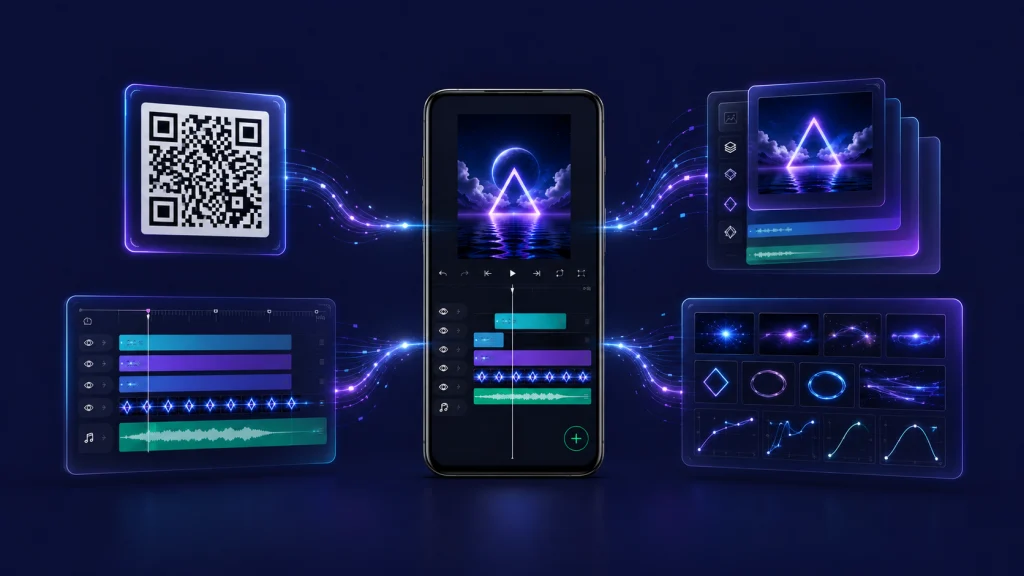
If you have searched for Alight Motion Scan 2026, you are probably looking for a quick way to use a QR code to import a project, reusable element, or preset-style editing resource into Alight Motion. QR codes can make project sharing much easier because creators can share project-package information through an Alight link or scannable code instead of manually recreating every layer and effect.
However, an Alight Motion QR code is not simply a magic “preset scanner.” The exact result depends on what was packaged and shared. Official Alight Motion documentation supports QR-code sharing for Project Packages and Elements, while terms such as “preset QR code” are also commonly used by online editing communities.
In this guide, you will learn what Alight Motion Scan 2026 means, how QR-based project sharing works, how to import a shared project, what happens after importing, how QR codes differ from XML files and presets, and what to do when an Alight Motion QR code is not working.
What Is Alight Motion Scan 2026?
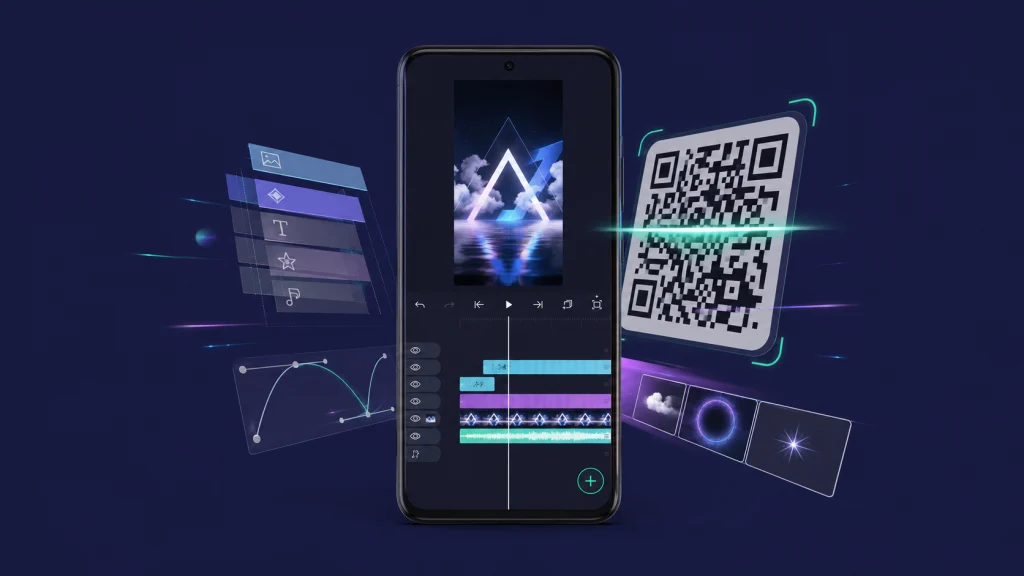
Alight Motion for IOS generally refers to scanning or opening an Alight Motion QR code to access shared project or element information.
Rather than creating an animation completely from scratch, a creator can package a project or reusable element and share it using an Alight link or QR code. Someone receiving that QR code can then open the shared resource and import it into Alight Motion through the supported workflow.
This can be particularly useful when a project contains multiple layers, animations, effects, text elements, or other settings that would take considerable time to recreate manually.
It is important to understand that there is not necessarily a universal scanner that turns every QR code labeled “Alight Motion preset” into a ready-made preset. Online creators often use terms such as Alight Motion preset QR code, Alight Motion scan code, and Alight Motion QR codes loosely.
The actual content behind the QR code matters.
A QR code can provide access to shared project-package information. Once imported, you can work with the project rather than manually rebuilding the entire edit.
How Alight Motion QR Codes Work
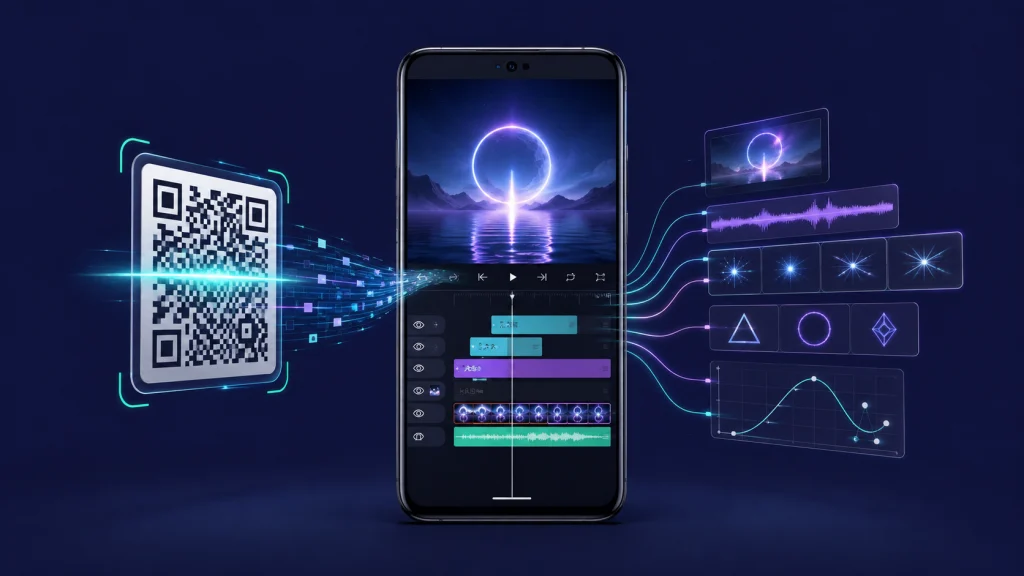
The easiest way to understand an Alight Motion Scan 2026 QR code is to think of it as a convenient sharing method.
The general workflow looks like this:
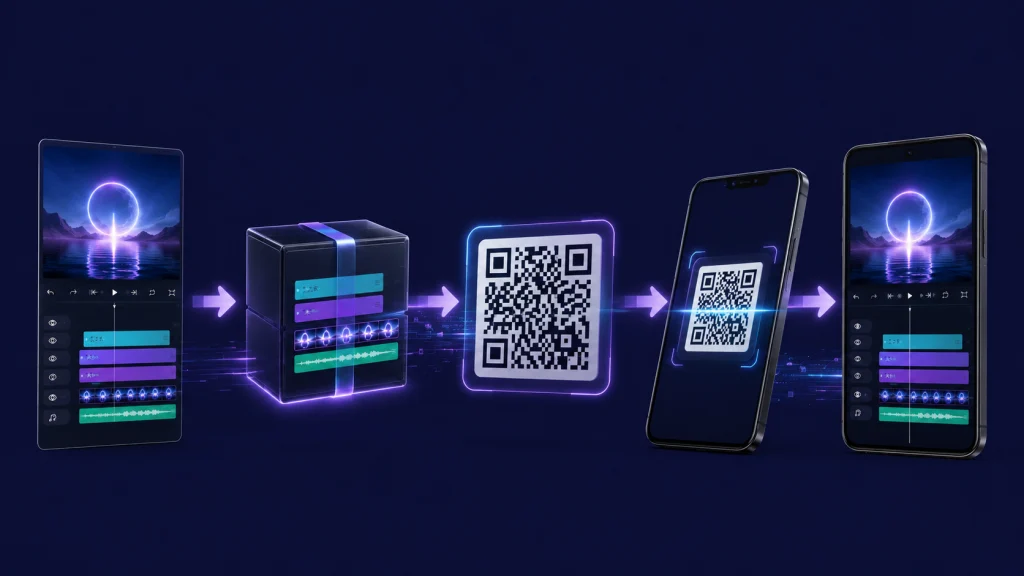
Project or Element → Project Package → Alight link or QR code → Scan/Open → Import → Project available in Alight Motion
A QR code itself is not the video project. It is a scannable representation that can provide access to information associated with a shared project package.
For example, a creator can prepare a project for sharing and generate an Alight link and QR code. Another user can scan or open that code, follow the associated link, and import the shared project.
This makes project distribution easier, particularly when someone wants to share an editable structure instead of exporting a finished video.
According to the documented Alight Motion workflow, imported projects can become available in the Templates area. This is different from simply downloading a rendered MP4 because the purpose of project sharing is to make the project structure available for further editing.
The same general concept can also apply to reusable Elements.
What Can You Import With an Alight Motion QR Code?
Not every QR code represents the same type of resource. Understanding the differences can prevent confusion when searching for an Alight Motion MOD APK DOWNLOAD QR code scanner or an Alight Motion QR code import method.
Project Packages
Project Packages are one of the main uses of the QR-code sharing workflow.
A project can be packaged for sharing and accessed through an Alight link or QR code. This allows another user to import the project rather than manually recreating its structure.
A shared project may contain elements such as layers, animation settings, effects, text, and timing, depending on how the original project was created.
The exact editing experience can therefore vary between projects.
Reusable Elements
Alight Motion Scan 2026 also supports sharing Elements through project packages and QR codes.
An Element can represent a reusable part of an editing project. Sharing reusable components can save time when the same visual structure needs to be used in multiple projects.
For example, a creator might share a reusable animated component rather than an entire finished edit.
Preset-Style Editing Resources
You may also see the phrase Alight Motion Scan 2026 on websites, social media, or editing communities.
“Preset” is often used as a community term for reusable settings, effects, animations, or project resources. However, that does not mean every resource described online as a preset follows the same official QR-code workflow.
When you find an online QR code, pay attention to what it actually links to and what type of project or resource it represents.
How to Scan an Alight Motion Scan 2026 QR Code
The exact interface can vary by device and app version, so it is better to understand the workflow rather than rely on a specific button name.
Step 1: Get a Valid QR Code
Start with a clear, readable QR code.
Ideally, use a QR code from a source you trust. If the code is compressed, blurry, cropped, or damaged, your phone may have difficulty recognizing it.
If possible, use the original high-resolution image instead of a screenshot that has been repeatedly compressed.
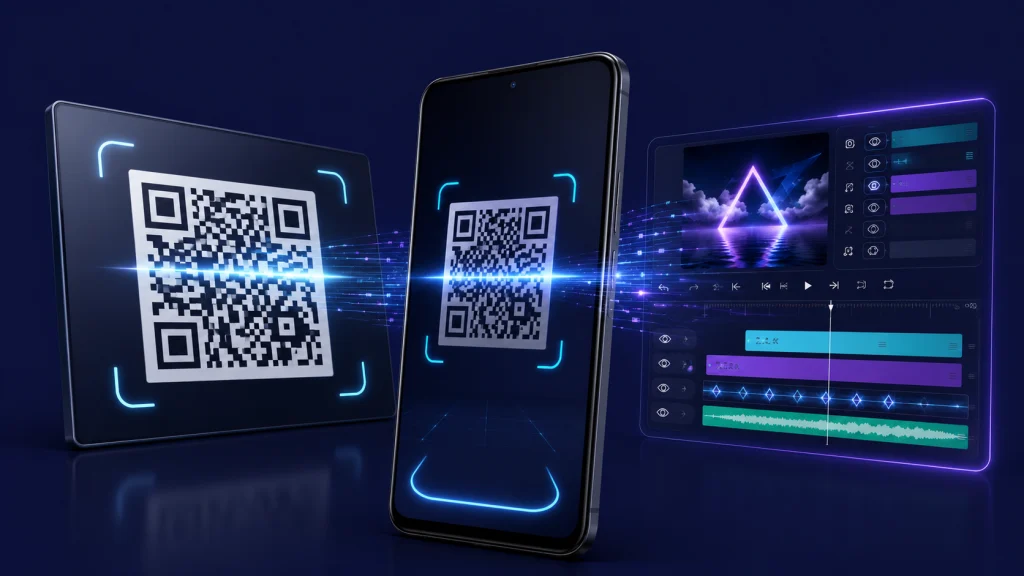
Scan or Open the QR Code
Use your device’s supported QR-scanning method to read the code.
Depending on how the QR code was shared, scanning it may identify an Alight Motion link or another destination associated with the shared project.
Avoid assuming that every QR code found online is an official Alight Motion resource.
Step 3: Open the Alight Motion Link
After scanning, review the destination before continuing.
A valid project-sharing QR code can lead to an Alight link or project-package workflow. Follow the supported link and allow the project to open through the appropriate app or browser process.
If the destination looks unrelated or suspicious, do not continue.
Step 4: Confirm the Import
Once the shared project opens through the supported workflow, follow the available import instructions.
The result depends on the package that was shared. A project package may contain a complete editable project structure, while another shared resource may represent reusable Elements.
Step 5: Find the Imported Project
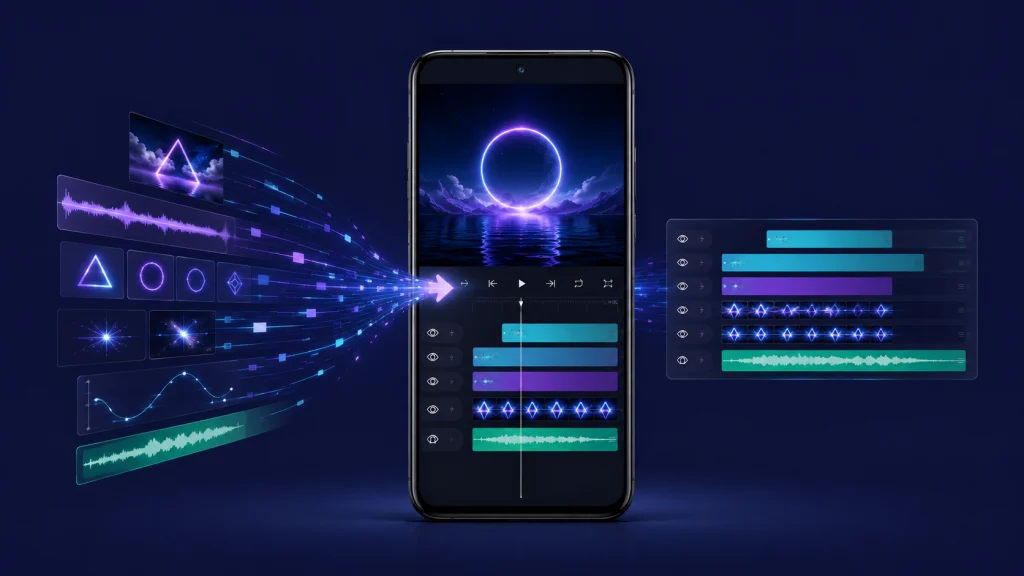
After importing, check the appropriate project area in Alight Motion.
According to the documented workflow, imported projects can become available in the Templates tab.
If you do not immediately see the project, make sure the import process actually completed before assuming the QR code failed.
Step 6: Customize the Project
Once imported, you can modify the project according to its editable structure.
Common changes include replacing media, editing text, changing colors, adjusting timing, modifying effects, and removing unnecessary layers.
The available options depend on how the original project was created and what resources it contains.
Alight Motion Scan 2026 vs XML Import
QR-based project sharing and XML import are related to project transfer, but they are not interchangeable.
| Method | What It Means | Main Use |
|---|---|---|
| QR / Project Package | A convenient way to access shared project or Element package information | Sharing and importing |
| XML | Project information stored in XML format | Project transfer/import |
An Alight Motion Old Version Download provides a convenient sharing mechanism through an Alight link or QR code.
XML, on the other hand, is a project-data format. An XML file contains project information that can be imported through the appropriate XML workflow.
If a creator specifically gives you an XML file, you should use the relevant XML import process rather than trying to treat the file as a QR code.
This distinction is important because websites and editing communities sometimes describe different project-sharing methods using similar terminology.
If you regularly work with editable Alight Motion Scan 2026 projects, an [Alight Motion XML] page can be useful alongside your QR-code resources.
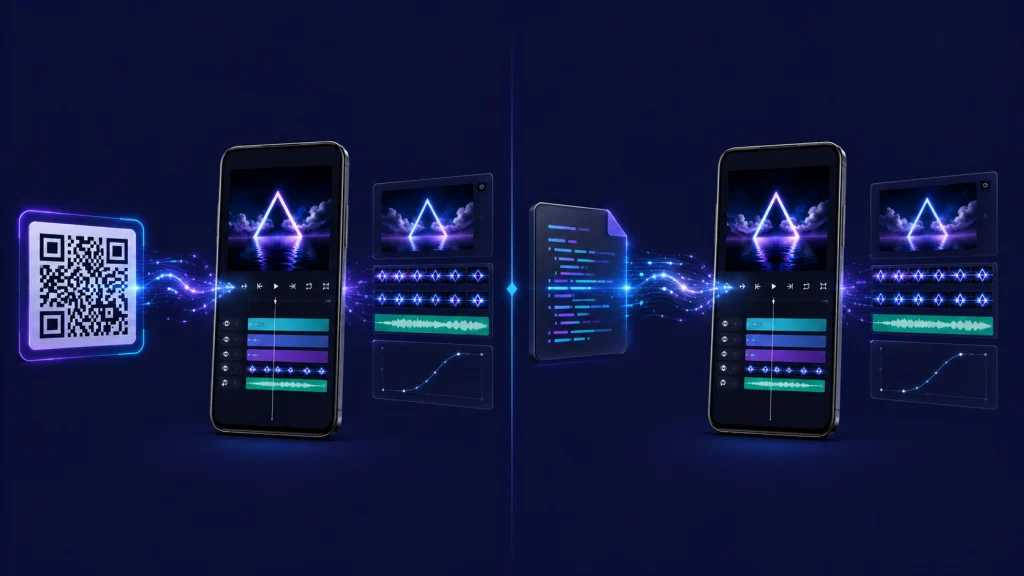
Alight Motion Scan 2026 QR Code vs Preset vs Template
These terms are often used interchangeably online, but they describe different concepts.
| Term | Meaning | Main Purpose |
|---|---|---|
| QR Code | A scannable code that can provide access to shared project/package information | Sharing/import |
| Project Package | A packaged Alight Motion project or Elements | Moving/sharing projects |
| Template | A reusable project structure | Faster editing |
| Preset | A common community term for reusable settings/effects | Reusing an editing style |
| XML | Project data stored in XML format | Project transfer/import |
A QR code is a sharing mechanism, while a project package is the resource being shared.
A template describes a reusable project structure. “Preset” is broader and is frequently used by the editing community for reusable effects, settings, or animation resources.
This is why searching for Alight Motion Scan 2026 QR codes can produce different types of results. Always check what the resource actually contains instead of relying only on its title.
Benefits of Using Alight Motion Scan 2026 QR Codes
Faster Project Sharing
QR codes provide a convenient way to share project-package information.
Instead of manually explaining every layer or asking another editor to recreate the same structure, a creator can share a project through an Alight link or QR code.
Easier Collaboration
Reusable projects and Elements can be shared between creators.
This can make it easier to exchange editing structures when working on related projects or experimenting with different animation techniques.
Beginner-Friendly Workflow
Starting with an existing editable project can be easier than building every component from an empty timeline.
You can inspect the existing structure and gradually learn how its layers, effects, timing, and animations work.
Reusable Editing Structure
Reusable projects can reduce repetitive work.
If a project contains a structure that you frequently need, importing and customizing it may be more efficient than rebuilding the same arrangement every time.
For related resources, you can also explore [Alight Motion Presets] and [Alight Motion Templates] on your site.
Learning From Existing Projects
Imported projects can also be useful for learning.
Instead of only watching a tutorial, you can examine how an existing project is organized and experiment with its editable components.
This can help you understand concepts such as layers, animation timing, effects, and reusable elements.
However, importing a project does not automatically make the resulting edit professional. Understanding and customizing the project is still important.
How to Customize an Imported Alight Motion Scan 2026 Project
Once an imported project is available, you can adapt it to your own requirements.
Here are some common customization areas:
- Replace images: Use your own photos instead of the original media.
- Replace videos: Substitute your footage while preserving the project’s structure where possible.
- Edit text: Change titles, captions, names, or other text layers.
- Change colors: Adjust colors to match your preferred visual style.
- Adjust timing: Modify the timing of animations and individual elements.
- Modify effects: Change effect settings when the project allows it.
- Change project settings: Adapt available project settings to your needs.
- Remove unnecessary layers: Delete components that are not relevant to your edit.
Keep in mind that customization depends on the original project. Some resources may contain missing assets, unsupported effects, or other dependencies that affect what you can change.
If you are looking for effects specifically, an [Alight Motion Effects] resource can complement your imported projects.
Alight Motion QR Code Not Working? Try These Fixes
If an Alight Motion Scan 2026 QR code is not working, the problem may be with the QR image, the shared link, the import process, or the project itself.
QR Code Is Blurry
A blurry QR code may not scan correctly.
Try using a clearer, higher-resolution version of the code. Avoid repeatedly compressed screenshots or images where the QR pattern has been distorted.
QR Code Opens but Does Not Import
If the QR code opens successfully but the project does not import, check whether the associated link or project package is still valid.
You can also try opening the destination through a supported browser/app flow rather than repeatedly scanning the same damaged image.
App Opens the Wrong Screen
Sometimes link handling can affect where a shared resource opens.
This can be particularly relevant on iOS, where links and app handoffs can behave differently depending on the device configuration.
Rather than repeatedly scanning the same code, check the destination link and follow the supported import process.
Import Gets Stuck
If the import process does not complete, check your internet connection and restart the app before trying again.
A temporary connection or application problem can interfere with the import process.
Project Is Missing After Import
If you completed the import but cannot find the project, check the Templates area where imported projects can become available according to the official workflow.
Make sure you have given the import enough time to finish before checking again.
Imported Project Looks Different
An imported project may not look exactly like the original.
Differences can occur when the original project relies on assets, fonts, effects, or other resources that are unavailable or behave differently in your environment.
This does not necessarily mean that the QR code itself was invalid.
Are Alight Motion Scan 2026 QR Codes Safe to Use?
QR codes are simply a convenient way to access shared information, so the source of the code matters.
For safer project sharing:
You should also be careful when downloading files or resources from unknown websites. A QR code being labeled “Alight Motion” does not automatically establish that the resource came from Alight Motion itself.
The safest approach is to understand what you are importing and where it came from.
FAQs About Alight Motion Scan 2026
Final Verdict
Alight Motion Scan 2026 is best understood as a convenient way to access shared Alight Motion project-package information through QR codes and Alight links. Instead of rebuilding an edit manually, users can import shared projects or reusable Elements and then adapt them to their own requirements.
The most important distinction is that a QR code is not automatically a preset. It is a method of sharing or accessing project-related information. The actual resource depends on what the creator packaged and shared.
For the best experience, use valid project packages, verify unfamiliar links, and back up important work before experimenting. Once a project is imported, take time to customize its media, text, effects, timing, and layers rather than relying blindly on a ready-made edit.