Alight Motion Presets: XML, QR Codes & Best Effects in 2026
Creating every animation from scratch in Alight Motion takes time. You may need to set keyframes, adjust easing, configure effects, and repeat similar settings across multiple layers. Alight Motion presets can make this workflow easier by giving you reusable effects, animations, or project setups that are already configured.
Depending on how a creator shares them, presets and reusable setups may come through project packages, Alight links, QR codes, XML files, or reusable Elements. You can import the compatible file or project, customize its settings, and use it as a starting point for your own edit. This guide explains popular Alight Motion preset types, XML and QR imports, how to apply effects, and how to fix common preset problems.
What Are Alight Motion Presets?
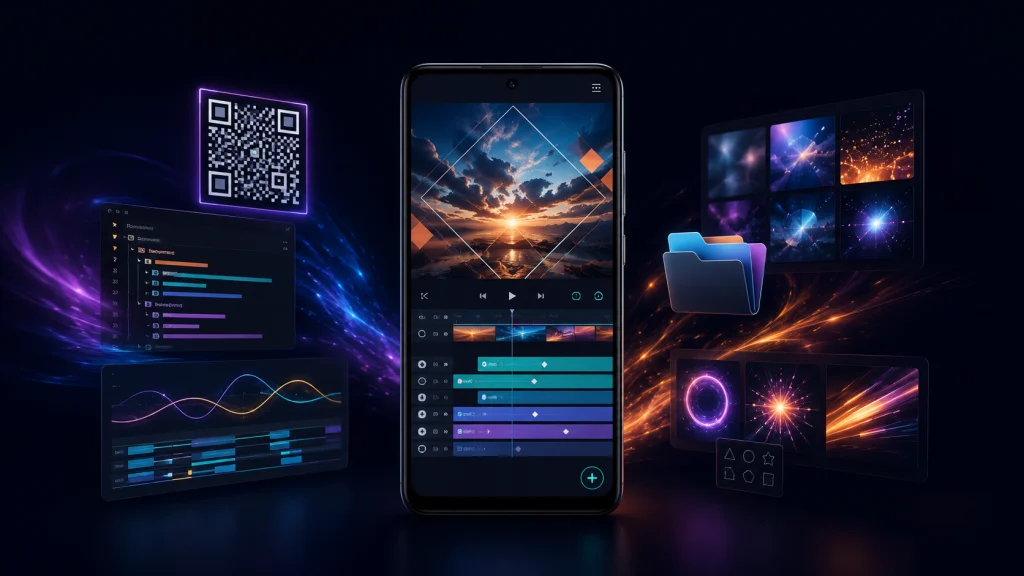
Alight Motion presets are pre-configured editing setups designed to reduce repetitive editing work. Instead of manually rebuilding the same combination of keyframes, effects, transitions, or animation settings, you can import or reuse an existing setup.
Alight Motion Presets officially supports more than 100 customizable effects, keyframe animation, animation easing, vector and bitmap graphics, multiple layers, masking, color adjustments, motion blur, and other motion-design tools.
A useful distinction is that an effect and a preset are not exactly the same thing. An effect is an editing tool available inside Alight Motion. A preset usually refers to settings, effects, animations, Elements, or projects that have already been configured for reuse.
Presets can be useful for beginners who are learning how effects work, but experienced editors can also use reusable setups to save time on repetitive tasks.
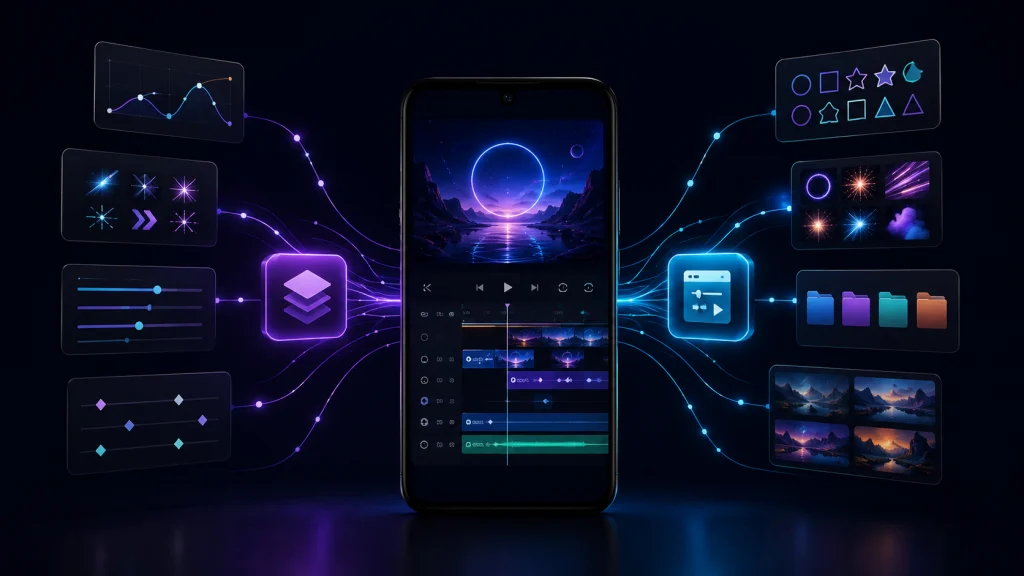
7 Popular Alight Motion Preset Types to Try
There is no single preset that works for every video. Your choice should depend on the style of edit you are creating.
1. Transition Presets
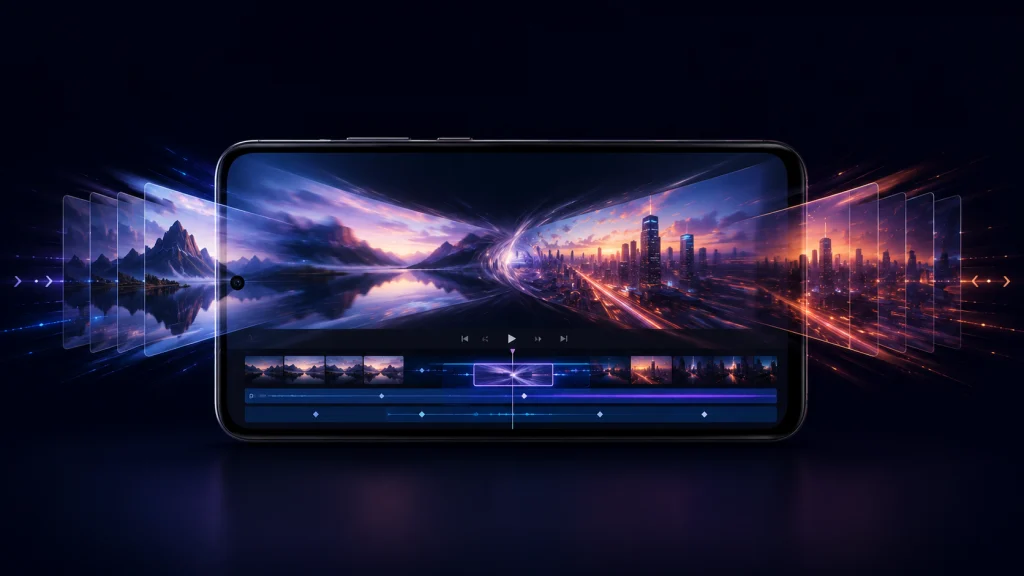
Transition presets help connect one clip or scene with another. Common styles use zooming, rotation, movement, blur, or combinations of several effects.
Instead of creating the same keyframe sequence every time, you can start with an existing transition and adjust its timing to match your footage.
Transitions work particularly well in short-form videos, montages, music edits, and fast-paced social media content. Avoid applying complex transitions between every clip, though. Sometimes a simple cut produces a cleaner result.
2. Motion Blur Presets
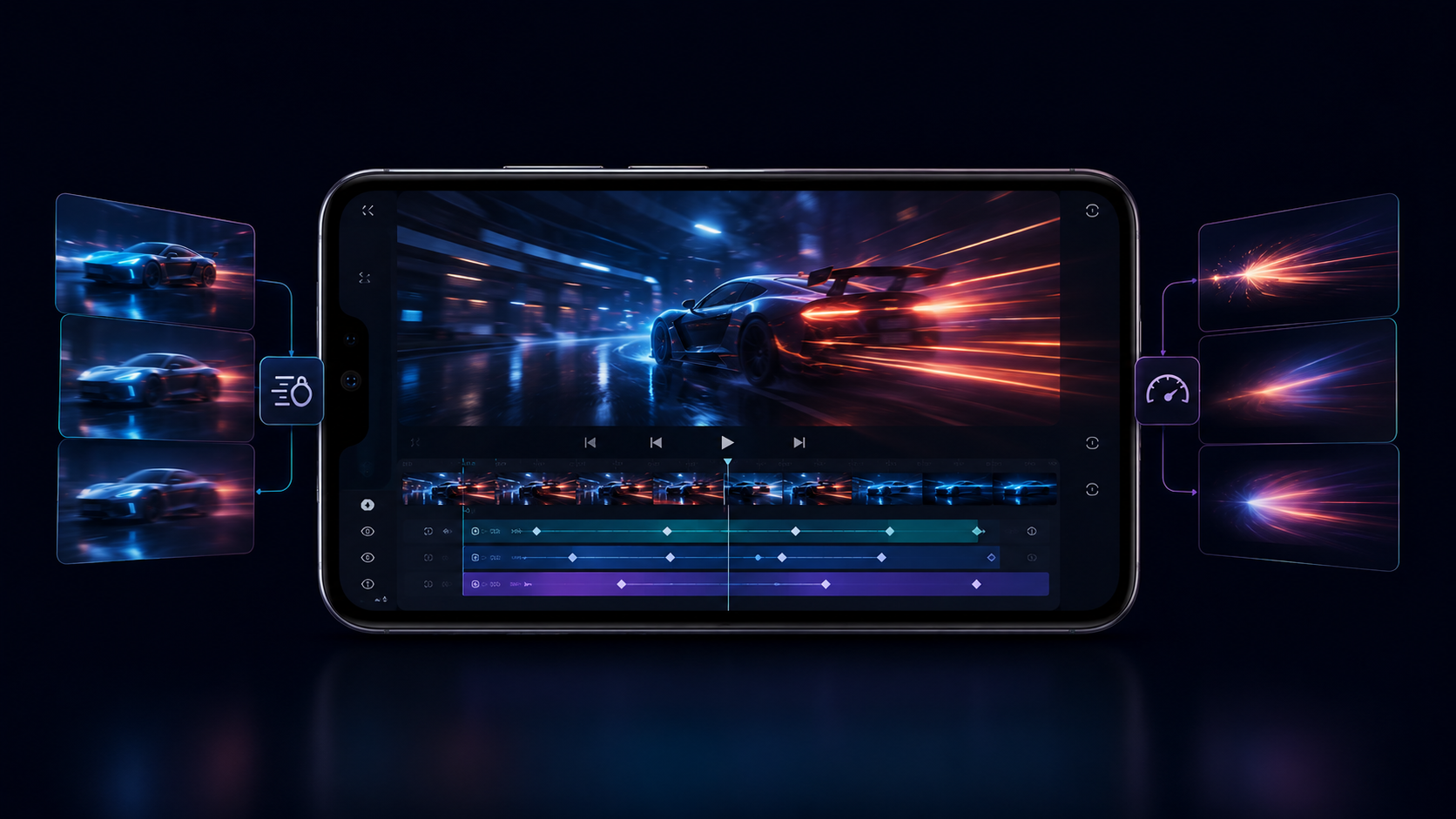
Motion Blur is an actual Alight Motion for IOS Presets feature that adds blur based on changes in an object’s position, scale, or rotation.
When combined with animated movement, motion blur can make fast transformations feel more natural. A motion blur preset may contain previously configured movement and blur settings so that you do not need to recreate the setup manually.
The final appearance still depends on the movement, timing, and other settings used in your project.
3. Glow and Light Effect Presets
Glow, lighting, and similar visual setups can help emphasize text, objects, logos, or important moments in an edit.
These presets are commonly useful for music edits, intros, gaming videos, titles, and stylized short videos.
Avoid excessive glow. If highlights become too bright, text and other important details may become harder to see.
4. Oscillate and Swing Presets
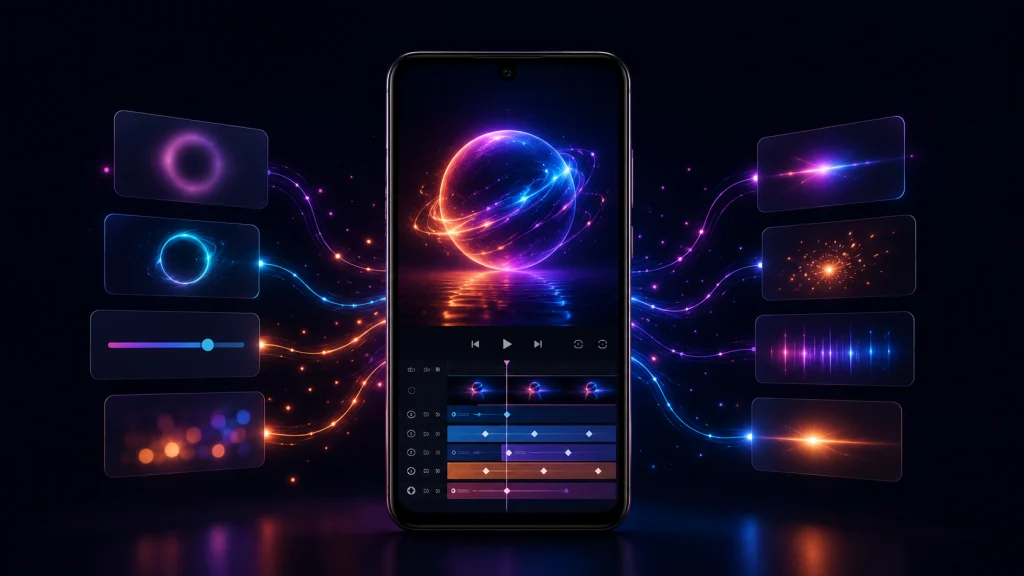
Oscillate and Swing are effects available within Alight Motion. Oscillation creates repeating movement, while swinging can be useful when you want motion that feels more rhythmic or dynamic.
Creators can combine these effects with keyframes and other settings and save or share the resulting setup.
They can work well for animated text, graphics, short-form edits, and objects that need repeated movement.
5. Tiles and Crop-Style Presets
Alight Motion Presets includes the Tiles effect, and tile-based preset setups can be used to create repeated or divided visual patterns.
These effects can give edits a more experimental appearance, especially when combined with movement and transformations.
They can work well for montages, gaming edits, music videos, and stylized transitions. However, more effects can also increase the resources required to preview and render a project.
6. Beat Sync Presets
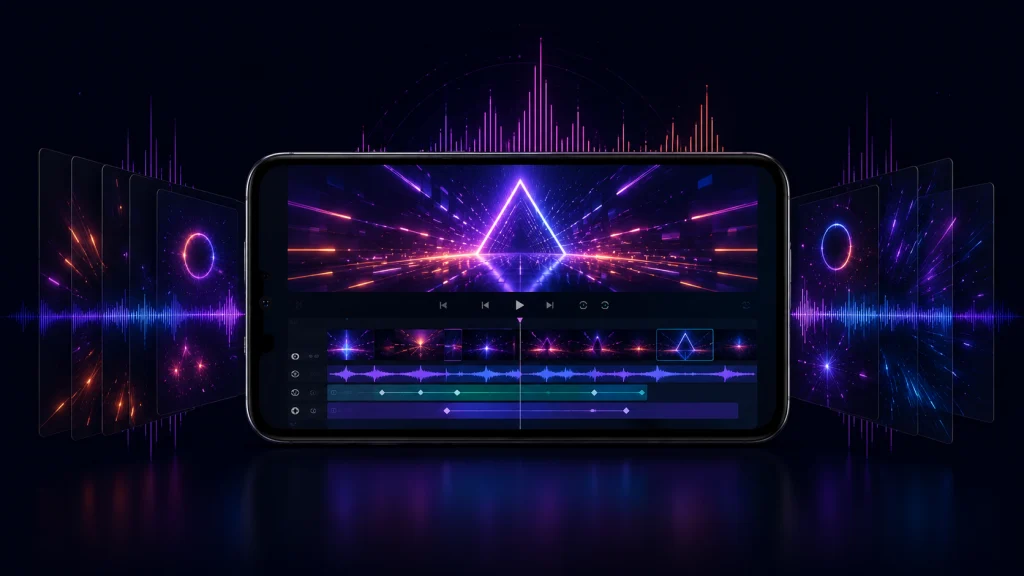
Beat sync presets are designed around the timing of music. They may include cuts, movement, zooms, shakes, or other effects positioned around specific beats.
They are particularly useful for reels, music edits, photo montages, and short videos.
A preset cannot guarantee perfect synchronization with every song. If your audio has different timing, you may need to move keyframes or adjust the preset manually.
7. Shake Effect Presets
Shake presets create rapid movement to add impact or energy to a clip, image, or text layer.
They are commonly used around beat drops, transitions, gaming moments, and dramatic edits. Different shake setups can vary in direction, intensity, speed, and duration.
For cleaner results, match the strength of the shake to the scene instead of applying maximum movement everywhere.
How to Import Alight Motion Presets
The correct import process depends on how the preset or project has been shared.
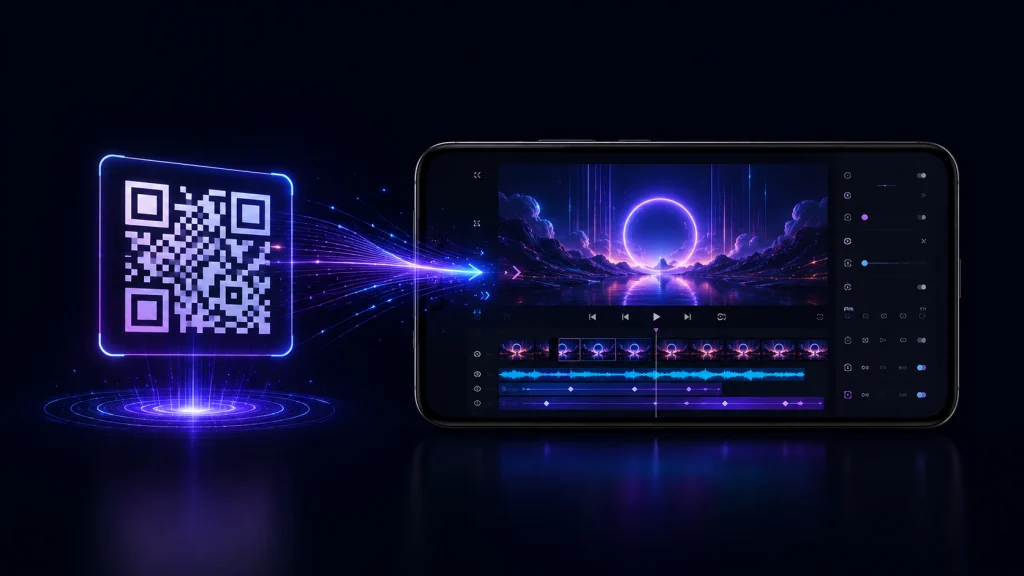
Method 1: Import Using a QR Code
Method 1: Import Using a QR Code
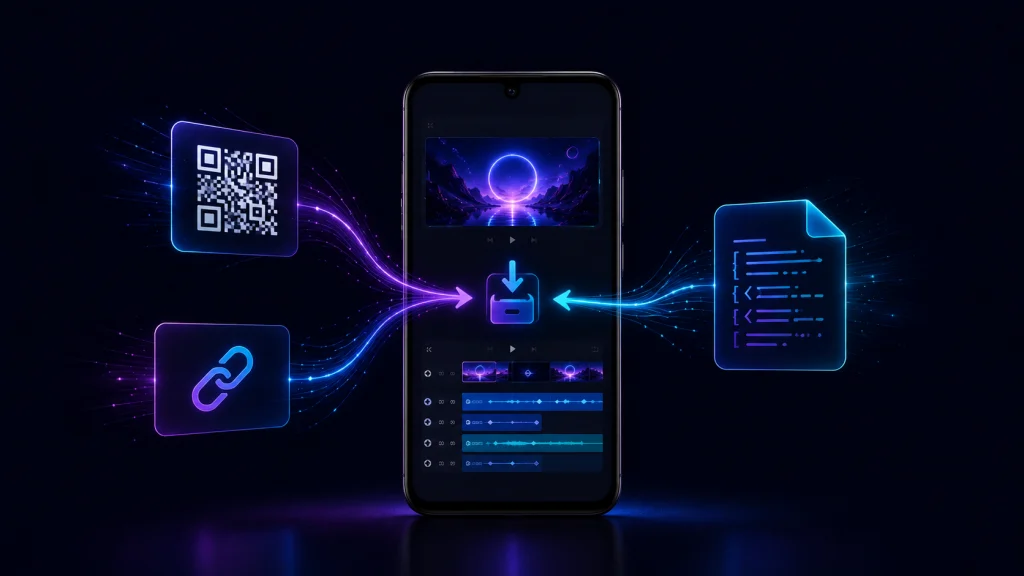
Alight Motion Presets supports sharing Project Packages through QR codes and Alight links.
To import one:
- Scan the provided QR code using your device.
- Open the Alight link generated by the QR code.
- Allow the link to redirect you to Alight Motion.
- Tap Import when prompted.
- Wait for the import process to finish.
- Check the Templates area for the imported project.
You do not need to look for a special built-in QR scanner inside Alight Motion Presets for this process. The QR code essentially gives you access to the shared Alight project link.
Only scan QR codes from sources you trust.
Method 2: Import an Alight Link
An Alight link is another convenient way to share a project or reusable Element.
Open the shared link on your device. It should redirect you toward Alight Motion Presets. Tap Import when prompted and wait for the project to finish importing.
If the link does not open correctly, try opening it in a normal browser rather than an in-app browser.
Keep important Alight Motion Presets links somewhere safe. Alight Motion old version download warns that Project Package links and QR codes are important for retrieving projects that have been backed up using this method.
Method 3: Import an XML File
Method 3: Import an XML File
XML provides another way of moving project information between compatible Alight Motion Presets
If you receive an Alight Motion preset XML file download, first make sure it came from a source you trust. Open Alight Motion and use the available XML/template import workflow for your app version to select the downloaded file.
After importing, inspect the project before applying its effects to important work.
Interface labels can change between versions, so options may not appear in exactly the same location on every device or release.
How to Use an Imported Alight Motion Preset
Importing a preset is only the first part. You normally need to adapt it to your own project.
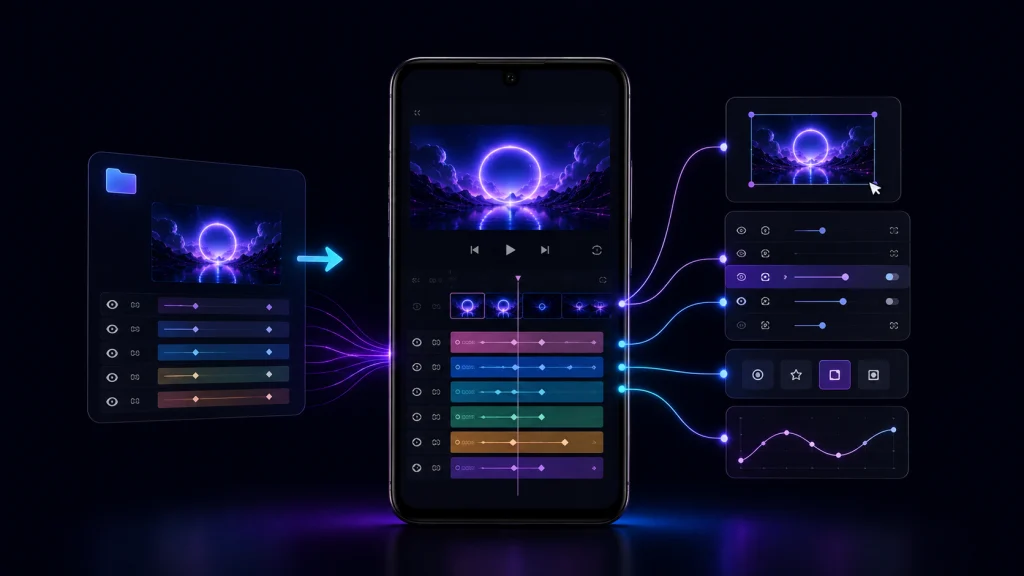
Open the Imported Project
Open the imported project or template and preview it. Check which layers contain the animation or effects you want.
Select the Correct Layer
Choose the layer containing the desired effect setup. A project may have multiple layers, so selecting the correct one is important.
Inspect the Effects
Open the layer’s Effects panel. Look at the effects and settings used rather than blindly copying everything.
This is also a useful way to learn how more complex animations are built.
Copy the Required Setup
Where your version and preset workflow support it, copy the relevant effect settings from the source layer.
Apply It to Your Project
Open your own project and select the target layer. Apply or paste the required effects, then preview the result.
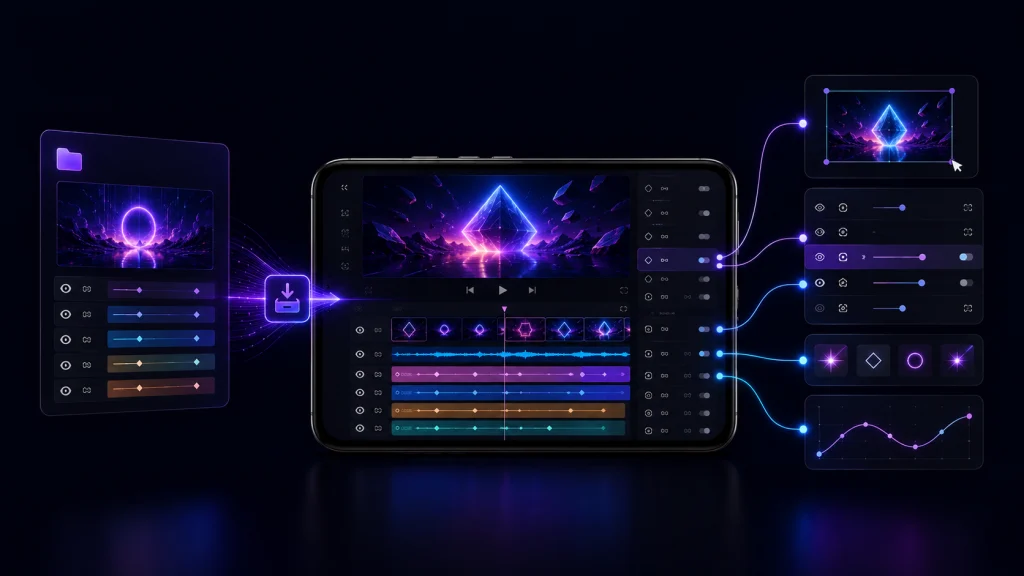
Customize the Preset
Do not assume the original settings will perfectly match your footage. Adjust timing, keyframes, movement, colors, intensity, and other parameters to fit your project.
Benefits of Using Alight Motion Presets
Faster Editing: Reusable configurations reduce the need to rebuild frequently used effects and animations from zero.
Helpful for Beginners: Presets allow new editors to inspect existing effect combinations, keyframes, and animation settings.
Consistent Visual Style: Reusing related setups can help maintain similar transitions, text animations, or motion styles across a video series.
Easy Customization: Presets are starting points rather than fixed final results. You can modify compatible effects, timing, keyframes, and other settings.
Learning Complex Effects: Opening a well-built preset can help you understand how multiple effects and keyframes work together.
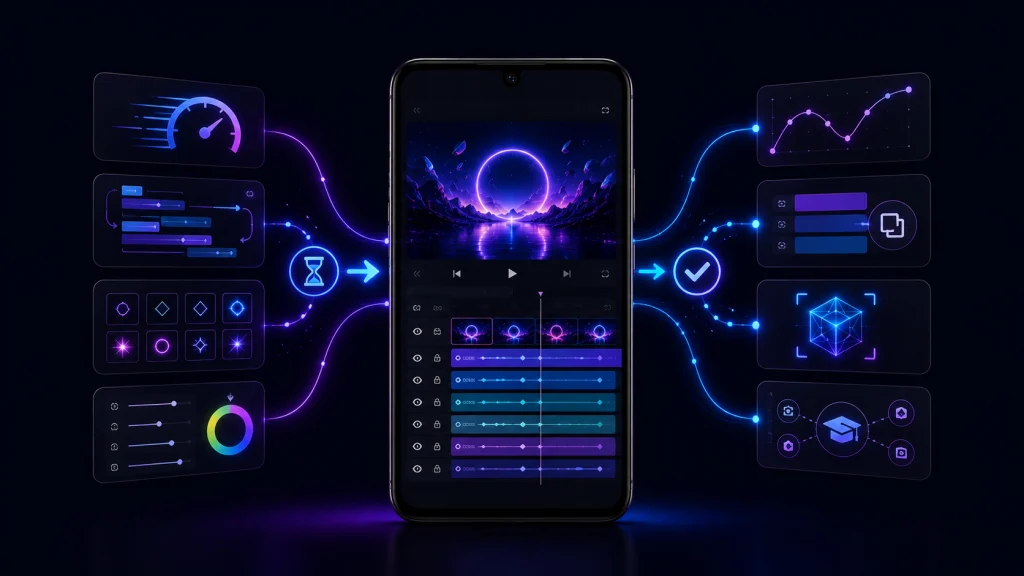
Alight Motion Presets Not Working? Common Problems and Fixes
XML File Is Not Importing
First check whether the download completed successfully and whether the file is actually a compatible XML file.
An XML created for a different app version may also behave differently. If possible, use a compatible Alight Motion version and download the file again if it appears incomplete.
QR Code Does Not Open
Make sure the QR image is clear enough to scan. If scanning gives you an Alight link but it does not open correctly, copy the link and try it in a regular browser.
Also check your internet connection because importing a Project Package through an Alight link requires online access.
Preset Looks Different After Import
Version differences, missing fonts, unavailable media, different project dimensions, or effect differences can change the appearance of an imported setup.
Check the original project’s layers and settings before assuming the preset is broken.
Effects Are Not Showing
Confirm that you selected the correct layer. Also check whether all required effects and settings exist in your version of Alight Motion.
Preview the original imported project to determine whether the problem occurs before or after you apply the setup to your own layer.
Alight Motion Lags After Applying a Preset
A preset can contain demanding effects, high-resolution media, or many layers. Alight Motion’s performance guidance recommends using heavy effects wisely and avoiding unnecessarily high project resolutions.
If performance drops, reduce unnecessary effects, close background applications, use an appropriate resolution and frame rate, or simplify the project.
Are Alight Motion Presets Safe?
A Alight Motion Presets is not automatically safe simply because it is labeled as an Alight Motion preset.
Use Project Packages, XML files, QR codes, and links from sources you trust. Be especially cautious if a website asks you to install an unrelated APK or grant unnecessary permissions just to access a preset.
For official Alight Motion app installation and updates, prefer authorized app stores where available.
Frequently Asked Questions
Final Verdict
Alight Motion presets can save time when you regularly create transitions, text animations, motion effects, beat edits, and other repeatable styles. QR codes and Alight links make Project Packages convenient to share, while XML and reusable Elements provide additional ways to work with existing setups.
Treat presets as editable starting points rather than one-click guarantees of professional results. Choose files from trustworthy sources, check compatibility, and customize each preset to match your footage, music, and editing style. The best result usually comes from understanding the preset and adapting it rather than simply applying it unchanged.